Custom row height + row image background
-
@arminunruh wonderful, thanks a lot!
-
-
how can i change this properties, what should i add, to always fit my image height into the row, without cropping the height or streching the image. (width can be cropped).
thank you in andvance!
@oxfir +1
Would like to know the same exact thing! -
@arminunruh please, just let us place the image in the row that is taking full browser height (without cropping the height) and stays proportional to the width.
-
in gridder: right click on row - enter html class/id → as class enter: "contain"
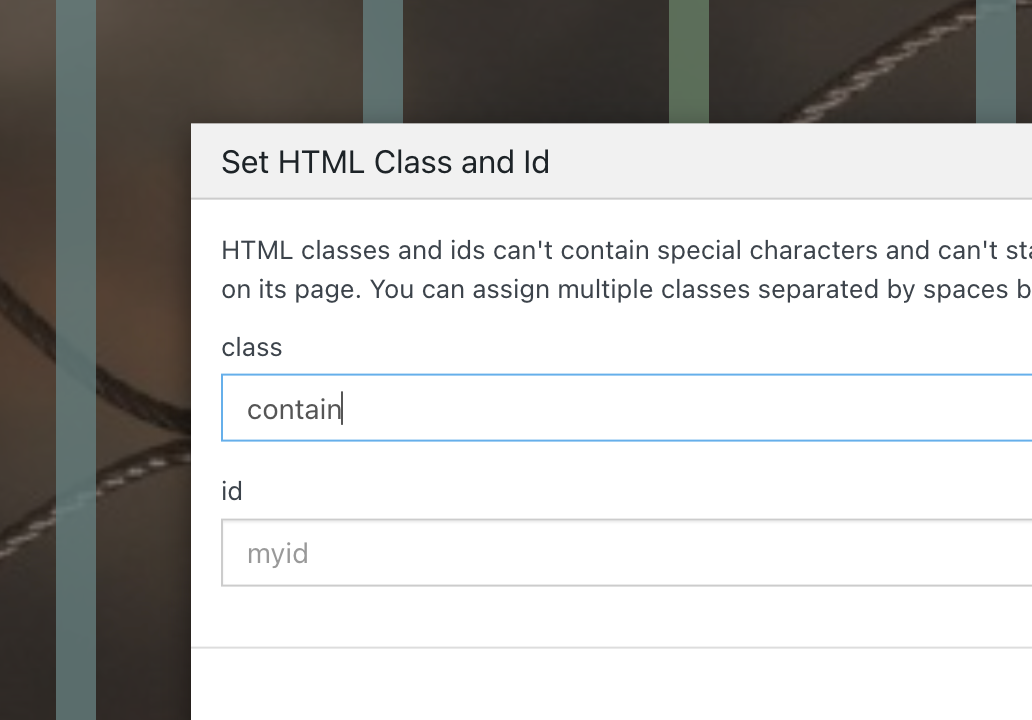
Enter the custom css in "lay options" -> "custom css & html"
.contain img{
object-fit: contain!important;
}
this will result in the background image not getting cut off, but the image will be shown like this:
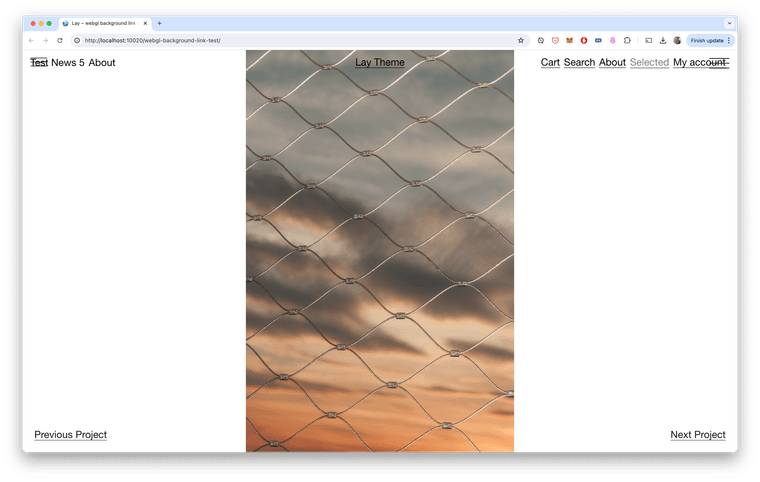
-
but after i think about it more, thats probably not what you want. :O
enter the class "full-height" in gridder: right click on row - enter html class/id
(without " ")then css:
.full-height img{ width: auto!important; height: 100%!important; object-fit: none!important; left: 50%!important; transform: translateX(-50%)!important; } -
this will not fill out the whole row in some cases
-
 A arminunruh referenced this topic on
-
but after i think about it more, thats probably not what you want. :O
enter the class "full-height" in gridder: right click on row - enter html class/id
(without " ")then css:
.full-height img{ width: auto!important; height: 100%!important; object-fit: none!important; left: 50%!important; transform: translateX(-50%)!important; }@arminunruh thank you!!! what makes you think that "contain" option is not what we want? I think it works perfectly and looks exactly how we wanted.
-
oh ok!
with contain, there can also be gaps at the top and bottom.
i thought you only wanted gaps at the left and right -
oh ok!
with contain, there can also be gaps at the top and bottom.
i thought you only wanted gaps at the left and right@arminunruh thank you, any idea how to contain two or three images in one "browser height" row as well?
When they're like this: ■ ■ ■
-
+more → +html
in the gridder.
then insert:<div style="display: flex; gap: 10px; position: absolute; width: 100%; height: 100svh; justify-content: center;"> <img style="height: 100svh;" src="https://upload.wikimedia.org/wikipedia/commons/9/90/Sanborn_Fire_Insurance_Map_from_Salem%2C_Essex_County%2C_Massachusetts%2C_1957%2C_Plate_0060.jpg" lazy/> <img style="height: 100svh;" src="https://upload.wikimedia.org/wikipedia/commons/9/90/Sanborn_Fire_Insurance_Map_from_Salem%2C_Essex_County%2C_Massachusetts%2C_1957%2C_Plate_0060.jpg" lazy/> <img style="height: 100svh;" src="https://upload.wikimedia.org/wikipedia/commons/9/90/Sanborn_Fire_Insurance_Map_from_Salem%2C_Essex_County%2C_Massachusetts%2C_1957%2C_Plate_0060.jpg" lazy/> </div>make sure you size that html element to span the whole width like here:

and make sure you use "right click -> browser height" on that row
-
this will probably cut off the left and right image a lot!
this is what it looks like for me with 3 portrait images:
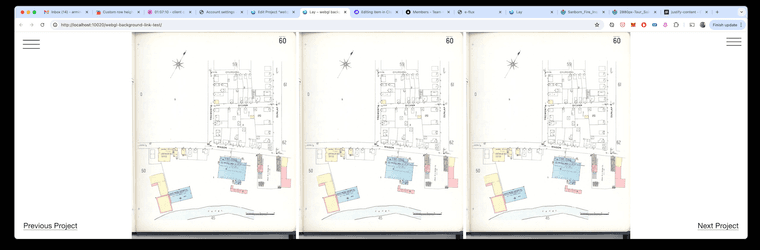
Hello! It looks like you're interested in this conversation, but you don't have an account yet.
Getting fed up of having to scroll through the same posts each visit? When you register for an account, you'll always come back to exactly where you were before, and choose to be notified of new replies (either via email, or push notification). You'll also be able to save bookmarks and upvote posts to show your appreciation to other community members.
With your input, this post could be even better 💗
Register Login