Skip to content
  • Recent
  • Tags
  • Popular
  • Users
  • Search
Skins
  • Light
  • Brite
  • Cerulean
  • Cosmo
  • Flatly
  • Journal
  • Litera
  • Lumen
  • Lux
  • Materia
  • Minty
  • Morph
  • Pulse
  • Sandstone
  • Simplex
  • Sketchy
  • Spacelab
  • United
  • Yeti
  • Zephyr
  • Dark
  • Cyborg
  • Darkly
  • Quartz
  • Slate
  • Solar
  • Superhero
  • Vapor

  • Default (No Skin)
  • No Skin
Collapse

Lay Theme Forum

  1. Home
  2. General Discussion
  3. text when hover over image

text when hover over image

Scheduled Pinned Locked Moved General Discussion
14 Posts 3 Posters 532 Views 2 Watching
  • Oldest to Newest
  • Newest to Oldest
  • Most Votes
Reply
  • Reply as topic
Log in to reply
This topic has been deleted. Only users with topic management privileges can see it.
  • J Offline
    J Offline
    Johannes Meger
    wrote on last edited by
    #4

    @arminunruh would be nice if you can help me with this. thanks.

    1 Reply Last reply
    0
    • arminunruhA Offline
      arminunruhA Offline
      arminunruh
      Global Moderator
      wrote on last edited by arminunruh
      #5

      hey!

      ah so you want a text below the image to show up when you hover over the image?

      how about this code:
      https://laythemeforum.com/topic/11141/text-link-on-image-hover/6

      and sorry about the late reply, seems like i missed your reply here

      1 Reply Last reply
      0
      • J Offline
        J Offline
        Johannes Meger
        wrote on last edited by
        #6

        hey no worries. I want a text over the image when hover with mouse over it. like on this site: https://www.juliasteinigeweg.de/work/
        And if possible to align the text and change fontstyle.

        1 Reply Last reply
        0
        • arminunruhA Offline
          arminunruhA Offline
          arminunruh
          Global Moderator
          wrote on last edited by
          #7

          oh sorry, i just realized the code didn't work anymore.

          this is the right css:

          /*this makes the caption appear on mouseover*/
          .type-img .caption{
              opacity: 0;
              transition: opacity 300ms ease;
          }
          .type-img:hover .caption{
              opacity: 1;
          }
          
          /*this makes the caption be on the image, centered*/
          .type-img .caption{
              transform: translate(-50%, -50%);
              position: absolute;
              top: 50%;
              left: 50%;
          }
          
          /*this makes the caption click through*/
          .type-img .caption{
          pointer-events: none;
          }
          
          1 Reply Last reply
          0
          • arminunruhA Offline
            arminunruhA Offline
            arminunruh
            Global Moderator
            wrote on last edited by
            #8

            if you want to set the position of the text differently for different images, use this CSS instead:

            /*this makes the caption appear on mouseover*/
            .type-img.mouseover-caption .caption{
                opacity: 0;
                transition: opacity 300ms ease;
            }
            .type-img.mouseover-caption:hover .caption{
                opacity: 1;
            }
            
            /*positions*/
            .type-img.mouseover-caption.center-center .caption{
                transform: translate(-50%, -50%);
                position: absolute;
                top: 50%;
                left: 50%;
            }
            .type-img.mouseover-caption.top-left .caption{
                position: absolute;
                top: 20px;
                left: 20px;
            }
            .type-img.mouseover-caption.bottom-left .caption{
                position: absolute;
                bottom: 20px;
                left: 20px;
            }
            .type-img.mouseover-caption.top-right .caption{
                position: absolute;
                top: 20px;
                right: 20px;
                *{
                    text-align: right!important;
                }
            }
            .type-img.mouseover-caption.bottom-right .caption{
                position: absolute;
                bottom: 20px;
                right: 20px;
                *{
                    text-align: right!important;
                }
            }
            
            /*this makes the caption click through*/
            .type-img.mouseover-caption .caption{
            pointer-events: none;
            }


            then right click an image and click "set html class and id":
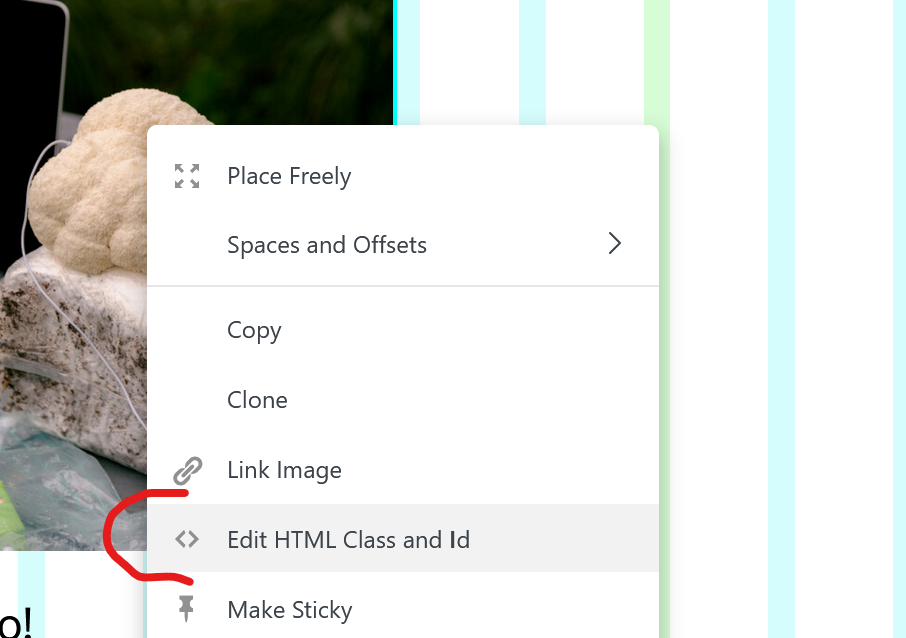
            29eb9231-fcb0-4786-b1e7-85a0f5805e2b-image.png

            now enter:

            mouseover-caption top-right
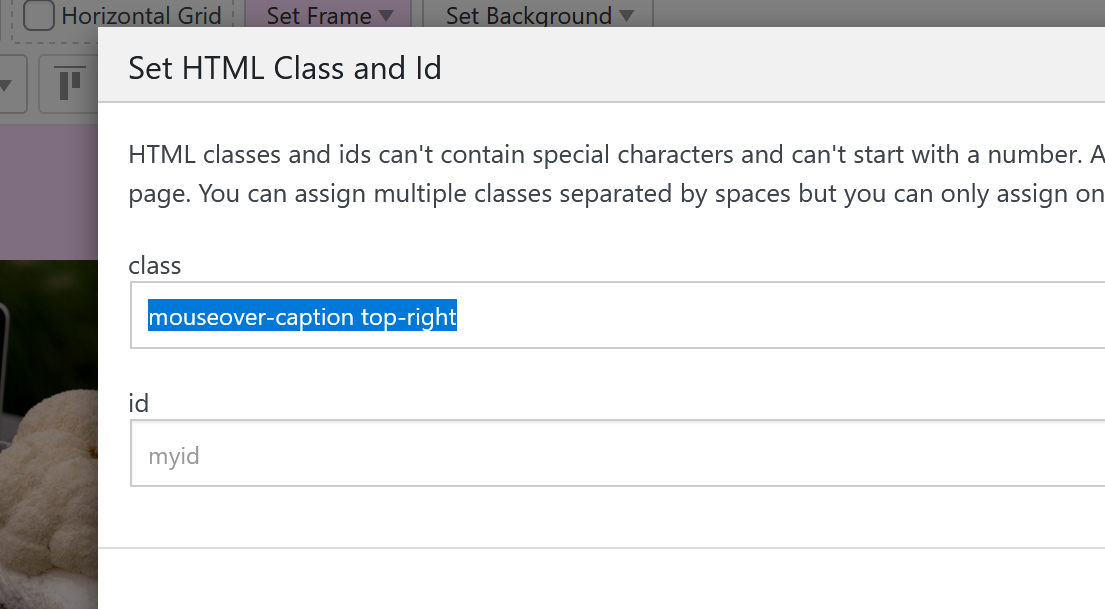
            5932bdcd-2d2f-4d2a-9db1-ddbf35f5b5de-image.png

            or
            mouseover-caption top-left
            mouseover-caption center-center
            mouseover-caption bottom-left
            mouseover-caption bottom-right

            and the font size and font color you can edit when you edit the caption of the image. the caption will be the text thats on top of the image:
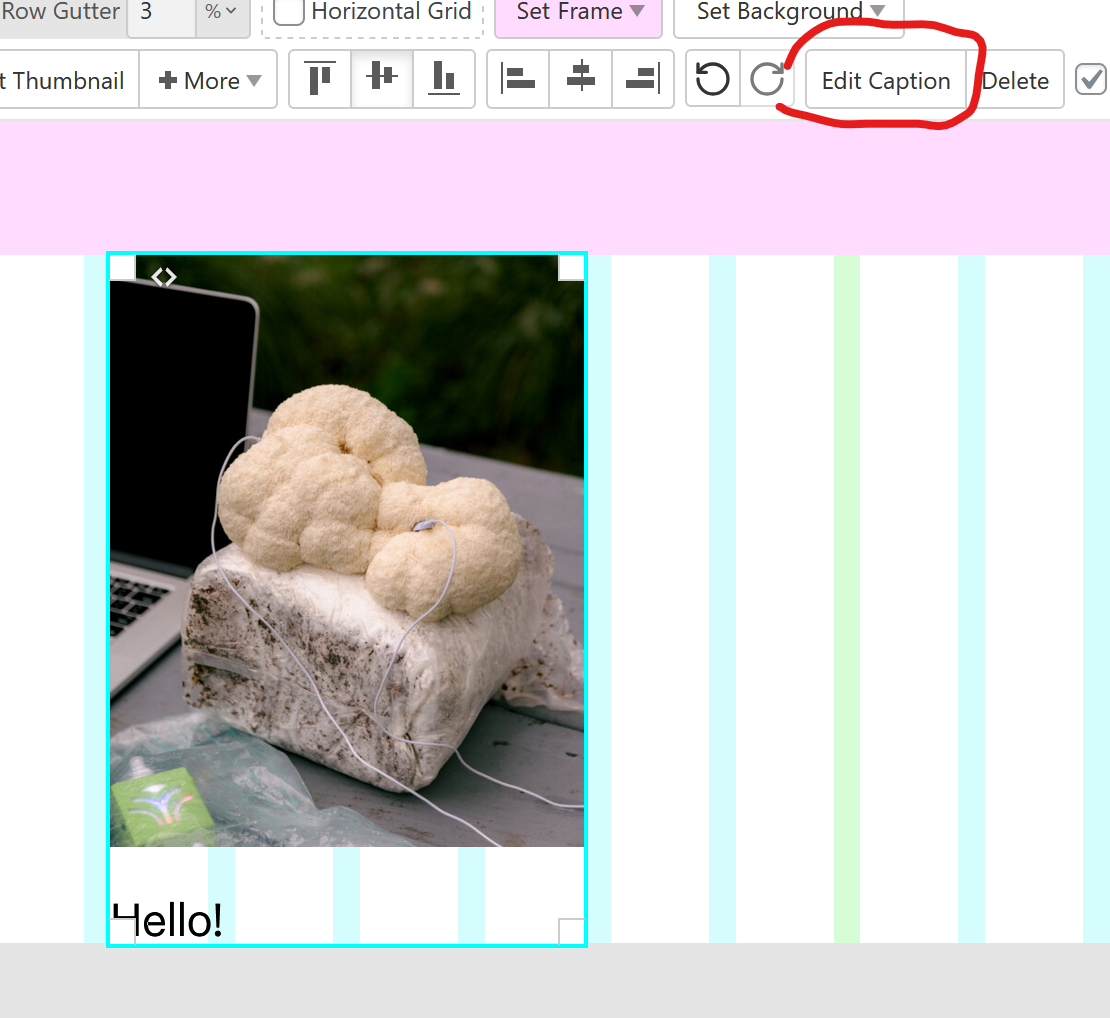
            5ef66593-affb-4d8b-9886-28497e9405d5-image.png

            1 Reply Last reply
            0
            • arminunruhA Offline
              arminunruhA Offline
              arminunruh
              Global Moderator
              wrote on last edited by
              #9

              actually there is a new way to do this thats easier.
              simply put text on the images using the new settings in the sidebar:
              https://laytheme.com/documentation/gridder-elements.html#text-on-image

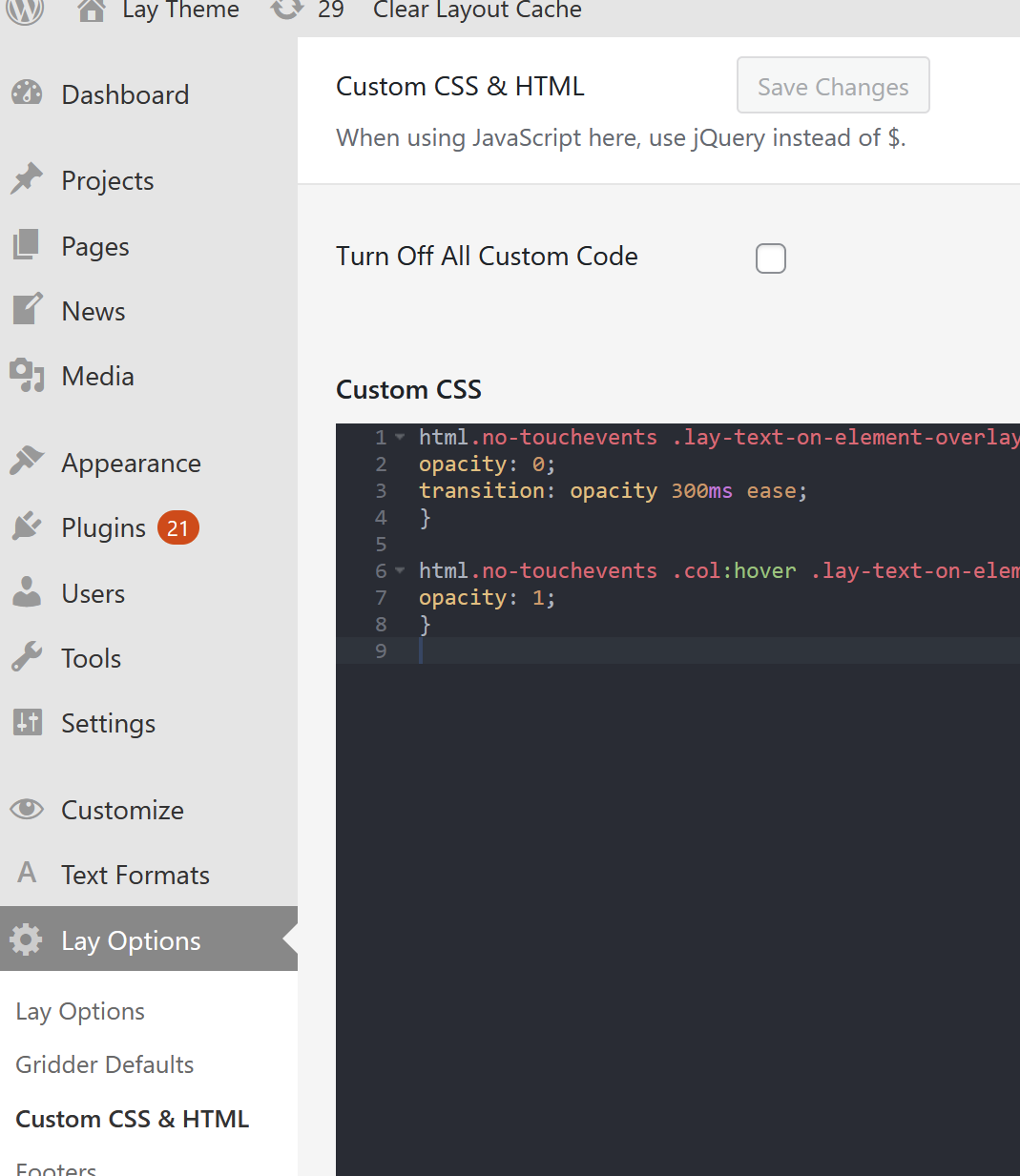
              and use this CSS to make them appear on hover:

              html.no-touchevents .lay-text-on-element-overlay{
              opacity: 0;
              transition: opacity 300ms ease;
              }
              
              html.no-touchevents .col:hover .lay-text-on-element-overlay{
              opacity: 1;
              }
              
              E 1 Reply Last reply
              0
              • arminunruhA arminunruh

                actually there is a new way to do this thats easier.
                simply put text on the images using the new settings in the sidebar:
                https://laytheme.com/documentation/gridder-elements.html#text-on-image

                and use this CSS to make them appear on hover:

                html.no-touchevents .lay-text-on-element-overlay{
                opacity: 0;
                transition: opacity 300ms ease;
                }
                
                html.no-touchevents .col:hover .lay-text-on-element-overlay{
                opacity: 1;
                }
                
                E Offline
                E Offline
                erdnussgerd
                wrote on last edited by
                #10

                @arminunruh Thank you! I was looking for this feature. I cant implement the CSS though. Can you explain this a bit more detailed? Where do i have to put in the CSS? Just copy the code into "Edit Desktop CSS"? It doesnt work for me...

                1 Reply Last reply
                0
                • arminunruhA Offline
                  arminunruhA Offline
                  arminunruh
                  Global Moderator
                  wrote on last edited by
                  #11

                  yes just put it here:

                  image.png

                  and then make sure you added the text on top of the image within the sidebar:
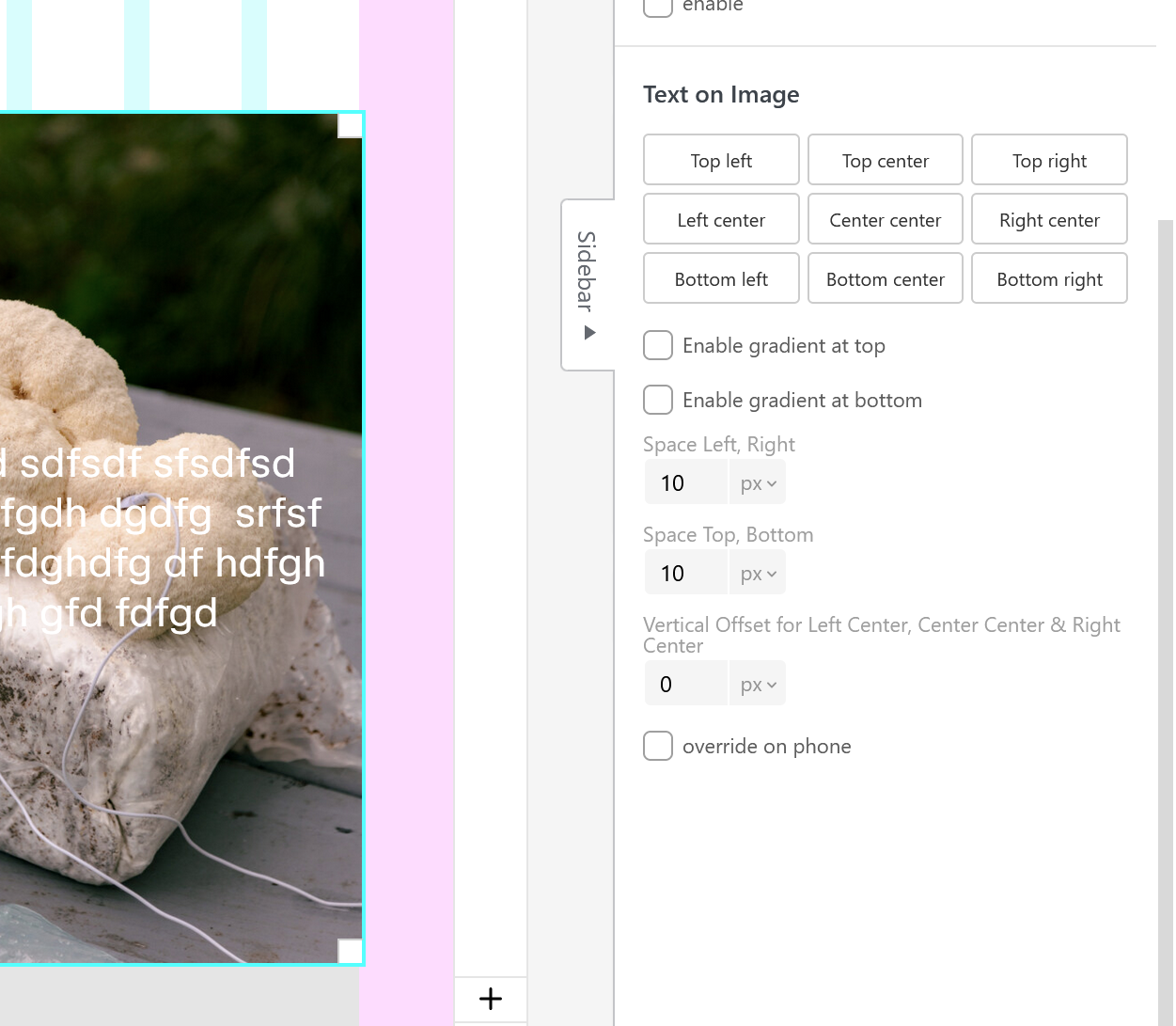
                  image.png

                  E 1 Reply Last reply
                  0
                  • E Offline
                    E Offline
                    erdnussgerd
                    wrote last edited by
                    #12
                    This post is deleted!
                    1 Reply Last reply
                    0
                    • arminunruhA arminunruh

                      yes just put it here:

                      image.png

                      and then make sure you added the text on top of the image within the sidebar:

                      image.png

                      E Offline
                      E Offline
                      erdnussgerd
                      wrote last edited by
                      #13

                      @arminunruh

                      Thank you!!! Got it to work. :)

                      Is there a way to make the gradient color only appear with the text (for readability)?

                      And is there a way to display a second image (on the image) when i hover over it?

                      1 Reply Last reply
                      0
                      • arminunruhA Offline
                        arminunruhA Offline
                        arminunruh
                        Global Moderator
                        wrote last edited by
                        #14

                        you'll need to use this CSS instead:

                        html.no-touchevents .lay-text-on-element-dark-gradient,
                        html.no-touchevents .lay-text-on-element-overlay{
                        opacity: 0;
                        transition: opacity 300ms ease;
                        }
                        
                        html.no-touchevents .col:hover .lay-text-on-element-dark-gradient,
                        html.no-touchevents .col:hover .lay-text-on-element-overlay{
                        opacity: 1;
                        }
                        

                        if you want this without the fade animation:

                        html.no-touchevents .lay-text-on-element-dark-gradient,
                        html.no-touchevents .lay-text-on-element-overlay{
                        opacity: 0;
                        }
                        
                        html.no-touchevents .col:hover .lay-text-on-element-dark-gradient,
                        html.no-touchevents .col:hover .lay-text-on-element-overlay{
                        opacity: 1;
                        }
                        

                        there is no mouseover image functionality for images and no easy way to do this with custom css, but i wrote it down as an idea

                        1 Reply Last reply
                        0
                        Reply
                        • Reply as topic
                        Log in to reply
                        • Oldest to Newest
                        • Newest to Oldest
                        • Most Votes


                        I also code custom websites or custom Lay features.
                        šŸ’æ Email me here: šŸ’æ
                        info@laytheme.com

                        Our Web Development company: 100k.studio

                        Want to tip me? https://www.paypal.com/paypalme/arminunruh

                        Before you post:
                        1. When using a WordPress Cache plugin, disable it or clear your cache.
                        2. Update Lay Theme and all Lay Theme Addons
                        3. Disable all Plugins
                        4. Go to Lay Options → Custom CSS & HTML, click "Turn Off All Custom Code", click "Save Changes"

                        This often solves issues you might run into

                        When you post:
                        1. Post a link to where the problem is
                        2. Does the problem happen on Chrome, Firefox, Safari or iPhone or Android?
                        3. If the problem is difficult to explain, post screenshots / link to a video to explain it
                        Online Users
                        Forgot your key, lost your files, need a previous Lay Theme or Addon version? Go to www.laykeymanager.com
                        laytheme.com
                        • Login

                        • Don't have an account? Register

                        • Login or register to search.
                        • First post
                          Last post
                        0
                        • Recent
                        • Tags
                        • Popular
                        • Users
                        • Search