JS History Back link
-
Hi there,
I‘m trying to create a binding JavaScript History Back link on a page.
This is the code I’m using in the custom HTML head section, but it doesn't seem to work…
<script>
jQuery(document).on("click", "go-back", function(event) {
history.back();
});
</script>
I’ve set a custom HTML class to the text box – "go-back"
But I can't seem to get it to work. I want it to work like a ‘normal’ HTML link, so when hovering the cursor over the text link, it will change to a ‘hand’ as standard, and when clicked goes back to the previous page.
Does anyone have any thoughts about this?
Thanks, D
-
Dear @Des
did you try this?
jQuery(document).on("click", ".go-back", function(event) {
history.back();
});
</script>
Best!
Marius
-
Hi @mariusjopen
Yes, I've used that code, and have now got it work. However, for the link, when hovering over it, the cursor does not change to a ‘hand’ to indicate it's a link, so it‘s not obvious to the viewer of the site.
I have tried putting a href link in the JS custom code, but can't get it to work.
<a href="javascript:history.back()"> Close </a>Any tips?
Thanks
-
Dear @Des
with CSS you could make cursor: pointer
Easy
Best!
Marius -
@mariusjopen ah yes, of course – I should have thought of that, thanks.
-
No worries! Happy to help!
-
Hey guys, I've been trying to follow but it seems like I'm missing out on something here. Would you care to explain for dummies again?
I have a png which I want to assign the class to in order to make it a button with history.back function.
This is the part I insert in Custom <head> content
<script>
jQuery(document).on("click", "go-back", function(event) {
history.back();
});
</script>
What to I insert elsewhere to make it an applicable class, which turns my png into a clickable link?
Many thanks!
-
Dear @sebht
Lets see if we can find a solution :)
A Png that you have inserted where exactly in your website?
(in a project or have you inserted it in CUSTOM HTML perhaps)Just to have a better idea?
The <Script> is looking to call "go-back" so we need to set up the PNG with this call -
Maybe this is what you are after?
Would be good to have more understandingLet me know :)
best wishes
Richard -
Dear @Richard-Keith
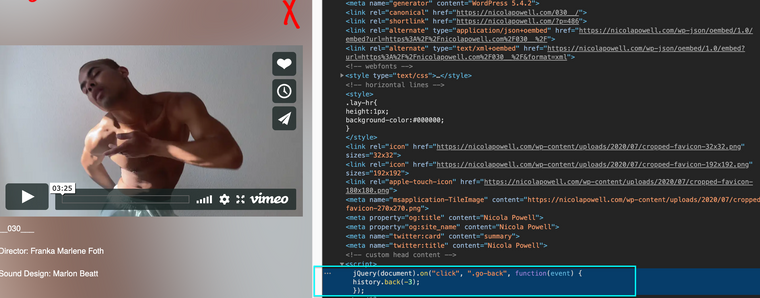
thanks for getting back! Here's the link to the project page I'm working on. The png is the red X in the top right corner. This project shows in the categories 'home' and 'edit', which is why I need the back function.
So I've gotten the <Script> to work by assigning the png a class – figured it out by myself :)
However, I have to click it twice to go back to the previous page. I guess there's an event in between that the button goes back to. How do I edit the <Script> to go to the overview?
Best,
Seb -



Hello! It looks like you're interested in this conversation, but you don't have an account yet.
Getting fed up of having to scroll through the same posts each visit? When you register for an account, you'll always come back to exactly where you were before, and choose to be notified of new replies (either via email, or push notification). You'll also be able to save bookmarks and upvote posts to show your appreciation to other community members.
With your input, this post could be even better 💗
Register Login