Skip to content
  • Recent
  • Tags
  • Popular
  • Users
  • Search
Skins
  • Light
  • Brite
  • Cerulean
  • Cosmo
  • Flatly
  • Journal
  • Litera
  • Lumen
  • Lux
  • Materia
  • Minty
  • Morph
  • Pulse
  • Sandstone
  • Simplex
  • Sketchy
  • Spacelab
  • United
  • Yeti
  • Zephyr
  • Dark
  • Cyborg
  • Darkly
  • Quartz
  • Slate
  • Solar
  • Superhero
  • Vapor

  • Default (No Skin)
  • No Skin
Collapse

Lay Theme Forum

  1. Home
  2. General Discussion
  3. Text on top of an image

Text on top of an image

Scheduled Pinned Locked Moved General Discussion
3 Posts 2 Posters 514 Views
  • Oldest to Newest
  • Newest to Oldest
  • Most Votes
Reply
  • Reply as topic
Log in to reply
This topic has been deleted. Only users with topic management privileges can see it.
  • W
    W
    willowj
    wrote on last edited by
    #1

    Hi all,

    I saw an old post about wanting to place text on top of an image. I would prefer to not 'paste' it in to the image, but have it on top of the image. I saw you mentioned this wasn't possible, however I'm wondering if this is now possible with the most updated version?

    Many thanks, and I love your theme! :)

    1 Reply Last reply
    0
    • W
      W
      willowj
      wrote on last edited by
      #2

      Hi again,

      Okay I worked out I can achieve what I want to do by adding my bio to the site tagline box in the customizer. The only thing is I can't add padding to each side of the text (in the screengrab I've just added turnarounds for now). I'm not a coder so am wondering what the code would be to add padding to the tagline and where I would place it?
      Many thanks! :)
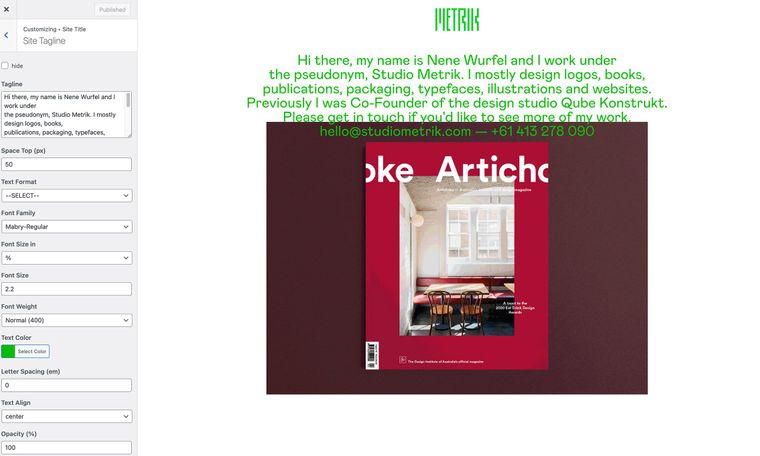
      Screen Shot 2022-05-11 at 4.56.02 pm.jpg

      1 Reply Last reply
      0
      • RichardR
        RichardR
        Richard
        Global Moderator
        wrote on last edited by
        #3

        Dear @willowj

        The Tagline region can be targeted with the following code:

        .tagline {
        // insert desired CSS here
        }
        

        And you can add padding in two different ways, the short hand way:

        padding: 0px 20px 0px 20px;
        

        This works on a compass, so North, east, south, west - (or top, right, bottom, left)

        north 0px, east 20px, south 0px, west 20px

        And long-hand or individual paddings:

        Padding-left:20px;
        Padding-right: 20px;
        

        Details here:

        https://www.w3schools.com/css/css_padding.asp

        For example:

        .tagline {
        padding-bottom:20px;
        padding-left:20px;
        }
        

        Custom CSS can be added via:

        Lay Options > Custom CSS & HTML > Custom CSS

        https://laytheme.com/documentation/custom-css-styling.html


        Have a wonderful day @willowj 🌻
        Richard

        1 Reply Last reply
        0

        Hello! It looks like you're interested in this conversation, but you don't have an account yet.

        Getting fed up of having to scroll through the same posts each visit? When you register for an account, you'll always come back to exactly where you were before, and choose to be notified of new replies (either via email, or push notification). You'll also be able to save bookmarks and upvote posts to show your appreciation to other community members.

        With your input, this post could be even better 💗

        Register Login
        Reply
        • Reply as topic
        Log in to reply
        • Oldest to Newest
        • Newest to Oldest
        • Most Votes


        Online Users
        R
        robertobarbes
        Forgot your key, lost your files, need a previous Lay Theme or Addon version? Go to www.laykeymanager.com
        laytheme.com
        • Login

        • Don't have an account? Register

        • Login or register to search.
        • First post
          Last post
        0
        • Recent
        • Tags
        • Popular
        • Users
        • Search